

How to streamline POS workflows: a practical guide

TL;DR:
- Proper POS setup begins with thorough preparation, including hardware and software gathering, to prevent costly errors. Configuring categories, permissions, and payment integrations based on real workflows enhances efficiency, while ongoing monitoring and tweaks ensure sustained performance. Regular reviews and security habits help maintain system integrity and staff morale, supporting long-term success.
Slow checkouts, misfired orders, and confused staff are not just minor annoyances. They cost you sales, damage your reputation, and burn out your team. If you have been wondering how to streamline POS workflows in your restaurant, café, or retail shop, you are in the right place. This guide walks you through every stage, from gathering the right hardware and software to testing edge cases and refining your setup over time. The goal is simple: a faster, more reliable point of sale operation that your staff trust and your customers barely notice.
Table of Contents
- Key takeaways
- What you need before optimising POS processes
- Configuring your POS for maximum efficiency
- Troubleshooting common POS problems
- Measuring results and refining your setup
- My honest take after seeing hundreds of setups
- Get your POS setup right with Ycr
- FAQ
Key takeaways
| Point | Details |
|---|---|
| Prepare thoroughly before setup | Gather hardware, software, and catalogue data before touching any configuration to avoid costly interruptions. |
| Configure with the customer journey in mind | Logical item categories, role-based permissions, and integrated payments cut transaction times significantly. |
| Test failure scenarios before going live | Practise declined cards, printer faults, and split bills before peak trading to protect your busiest hours. |
| Treat the first 30 days as a refinement phase | Real usage reveals workflow gaps that no pre-launch planning fully anticipates. |
| Make security a repeating habit | Regular password changes, firmware updates, and access controls protect both revenue and customer data. |
What you need before optimising POS processes
Getting a POS workflow right starts long before you touch the software. The operators who struggle most during setup are almost always the ones who skip the preparation stage, then spend days firefighting problems that a checklist would have prevented.
Start by confirming you have the right hardware in place. At a minimum, this means a reliable POS terminal or tablet, a receipt printer, a barcode scanner if you carry physical stock, and a payment terminal that supports contactless. For hospitality businesses, a kitchen display system or remote printer makes a substantial difference to order accuracy. Choosing a POS system for UK retail that suits your specific sector is worth dedicating proper time to before committing.
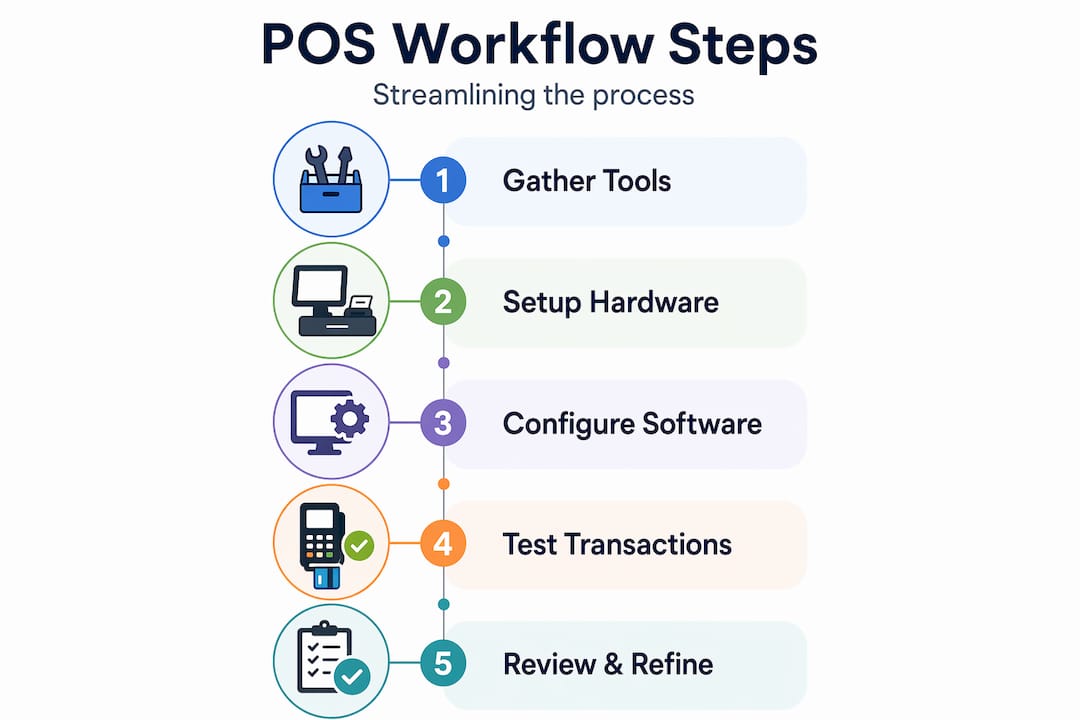
On the software side, you need to decide whether you are working with a cloud-based or locally hosted system. Open-API POS systems are preferable if you plan to add integrations like delivery platforms, loyalty schemes, or AI-assisted ordering later. Locking yourself into a proprietary system that cannot talk to anything else is a constraint you will feel quickly.
Before you configure a single category, pull the following together:
- A complete product or menu list, with current prices and any applicable tax rates
- Your stock levels if you carry inventory
- Staff names, roles, and what permissions each role should carry
- Your payment processor credentials and any loyalty programme details
- The name and contact of your accounting software provider, whether that is Xero, QuickBooks, or another platform
Pro Tip: Write all of this down in a simple spreadsheet before touching the POS setup. It takes an hour to prepare and saves several hours of stopping and starting mid-configuration.
Configuring your POS for maximum efficiency
With preparation done, you are ready to build a workflow that actually holds up during a busy Friday evening or a Saturday rush. The best practices for POS systems at this stage come down to structure, integration, and permissions. Get these three right and you eliminate the majority of errors before they happen.
Follow this sequence when configuring your system:
-
Set up product categories and subcategories. Group items in the way your staff think, not in the way your supplier catalogue is organised. A barista should be able to find “Flat White, Large” in two taps. If it takes five, the queue slows down.
-
Add modifiers and variants. Modifiers cover choices like “extra shot,” “gluten-free base,” or “size.” Build these into each product so staff never have to remember to ask separately. Missed modifiers are one of the leading causes of kitchen errors in hospitality.
-
Configure automatic inventory deductions. Every sale should reduce stock counts in real time. Set reorder alerts at a sensible threshold so you are never surprised by running out of a key item mid-service.
-
Integrate your payment options. Connect your card terminal so payments are confirmed automatically in the POS rather than keyed in manually. Integrating POS with accounting software like Xero or QuickBooks at the same stage removes a significant amount of manual bookkeeping and removes the risk of reconciliation errors at the end of each day.
-
Assign role-based staff permissions. A front-of-house team member does not need access to end-of-day reports or pricing changes. Restricting what each role can do reduces both honest mistakes and the risk of internal theft. Role-based access controls are one of the most underused tools available to operators.
-
Run a full end-to-end test before going live. This means processing a real sale, issuing a refund, splitting a bill, applying a discount, and completing a cash and card payment. Do not skip this step.
| Configuration area | Common mistake | Better approach |
|---|---|---|
| Product categories | Too many top-level menus | Group by service type or customer need |
| Modifiers | Optional rather than prompted | Make key modifiers mandatory at point of order |
| Inventory | Set manually each week | Automated deductions with reorder alerts |
| Permissions | One login for all staff | Separate roles for each function level |
| Payment integration | Card terminal runs separately | Paired directly to the POS for auto-confirmation |
Phasing your rollout during off-peak periods gives you breathing space to catch configuration errors before they affect real customers.
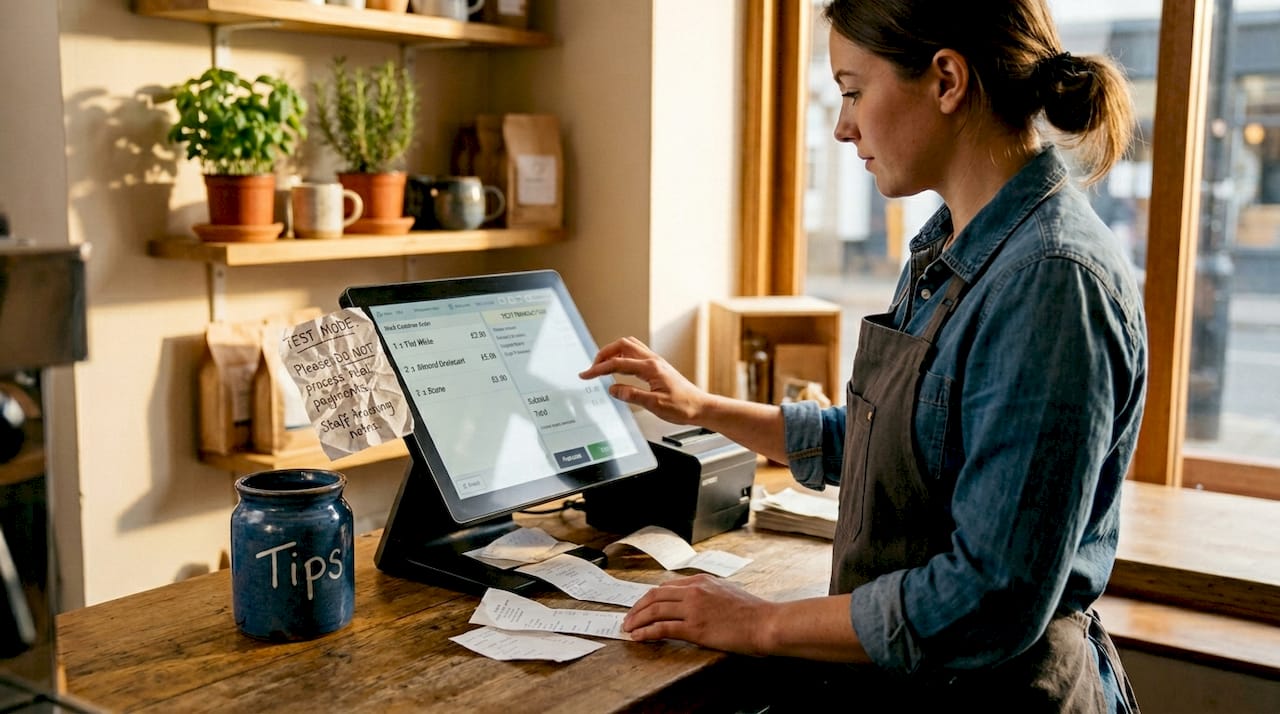
Pro Tip: Ask a team member who was not involved in the setup to run through a full transaction sequence. They will find the friction points that familiarity has made invisible to you.
Troubleshooting common POS problems
Even a well-configured system hits problems. What separates high-performing operations from struggling ones is how quickly and calmly staff can resolve them without bringing service to a halt. Knowing how to enhance point of sale workflows includes planning for the moments when things go wrong, not just when everything runs smoothly.
The most disruptive issues and how to handle them:
- Printer jams. Keep a basic clearing tool near every receipt and kitchen printer. Train staff to clear a jam in under 60 seconds and always have spare paper rolls within reach.
- Declined card payments. Your staff should know to politely ask the customer to retry, then try an alternative payment method. They should never suggest the card is faulty in earshot of other customers.
- Internet outages. Choose a POS system with an offline mode that queues transactions locally and syncs when the connection returns. This is non-negotiable for any business that relies heavily on card payments.
- Split bills. Test split payments repeatedly before going live. Testing edge cases like split payments during pre-launch training prevents the kind of fumbling that makes customers regret visiting during a busy period.
“Effective POS security is not a one-time setup but continuous operational discipline involving hardware checks, password policies, staff training, and incident plans.” POS security checklist
On security, the basics matter more than most operators realise. Change staff PINs every 90 days. Update firmware whenever the manufacturer releases a patch. Review who has access to which functions every time someone leaves or changes role. These feel like administration tasks, but they are genuinely how breaches happen in small and mid-sized businesses.
Pro Tip: Print a single-page quick reference card covering the five most common problems and pin it near each terminal. Staff in their first week will rely on it constantly, and it reduces panicked calls to management.
Measuring results and refining your setup
Getting your POS workflow configured and live is not the finish line. It is more accurate to think of it as the start of a process. The first 30 days post-launch are the single most valuable window for identifying gaps between how you designed the workflow and how your team actually uses it.
Look at these indicators regularly to assess how your setup is performing:
- Average transaction time. If it is taking more than 90 seconds per customer at the point of payment, something in the flow needs adjusting.
- Error and void rates. A high volume of voided transactions suggests either a configuration issue or a training gap.
- Staff feedback. Ask your team directly. They will tell you which product categories are hard to find, which modifiers are confusing, and where the system slows them down.
- Report accuracy. Cross-check your POS sales totals against your accounting software weekly. Persistent discrepancies signal an integration issue worth resolving quickly.
Use your analytics dashboard to make decisions based on what is actually happening in your business. The automated workflows used by retail brands across e-commerce can offer useful inspiration for applying similar logic to physical POS environments, particularly around reordering and customer communications.
Schedule a formal review of permissions, categories, and software updates at least once per quarter. POS workflow automation tips are most effective when they are treated as a living system rather than a fixed installation.
My honest take after seeing hundreds of setups
I have worked with operators across retail and hospitality for a long time, and one pattern comes up again and again. The business owner spends two weeks getting the system configured, goes live, breathes a sigh of relief, and then never looks at the setup again. Six months later they are dealing with a product menu that has grown chaotic, staff who have developed workarounds nobody approved, and reports that no longer reflect reality.
The businesses I have seen get this right treat their POS like a member of staff. They check in regularly. They adjust based on what they observe. When a new product line launches, they update the categories before it goes on sale, not three weeks after. When a team member leaves, they remove their access that same day.
What also surprises operators is how much workflow clarity affects staff morale. A well-organised POS reduces the cognitive load on your team during peak hours. That directly affects how your customers feel when they are standing at your counter. I have watched the same team handle twice the transaction volume simply because the retail checkout workflow was built logically around how they actually work, rather than around the default settings the software shipped with.
The first 30 days are genuinely critical. The operators who commit to a proper refinement period during that window build systems that hold up for years. The ones who move on too quickly spend that same time dealing with avoidable problems during their busiest periods.
— John
Get your POS setup right with Ycr
If you are working through how to set up or improve your point of sale operation, Ycr has the hardware, software, and expertise to support you. With over 30 years serving UK retail and hospitality businesses, Ycr offers a full range of terminals, printers, scanners, and displays alongside purpose-built software like SAMTOUCH and EZEEPOS.
You can explore the full POS software range to find a solution suited to your specific business type, or browse the complete hardware catalogue if you need to upgrade your terminals or peripherals. Ycr also provides a detailed POS setup guide tailored for UK hospitality and retail operators, and a hardware troubleshooting tutorial for resolving common issues quickly. Contact the team directly to discuss which configuration fits your operation.
FAQ
How do I start improving my POS workflow?
Begin by auditing your current setup: map your product categories, check which staff roles have access to which functions, and time your average transaction. Gaps become obvious quickly once you look at the system as a customer would experience it.
What are the best practices for POS systems in hospitality?
Configure modifiers and variants within each product, use role-based permissions to limit staff access, and integrate your payment terminal directly with the POS. Testing all payment scenarios including refunds and splits before going live is one of the most impactful steps you can take.
How long does it take to optimise a POS workflow?
Initial configuration typically takes one to three days depending on the size of your product catalogue. Budget a further 30 days of active review and adjustment after going live, as real usage patterns reveal issues that pre-launch testing cannot always catch.
How do I keep my POS system secure?
Repeatable security habits matter more than any single setting. Change staff PINs every 90 days, apply firmware updates promptly, and review access permissions whenever a team member changes role or leaves the business.
What is POS workflow automation and is it worth it for small businesses?
POS workflow automation refers to processes like automatic stock deductions, reorder alerts, and payment reconciliation that happen without manual input. For small businesses, these automations save hours of admin each week and significantly reduce the chance of human error during busy periods.